Learn Adobe Photoshop with AI Screen Assistance
Master photo editing, layer management, and advanced Photoshop techniques with real-time AI guidance that sees your screen.
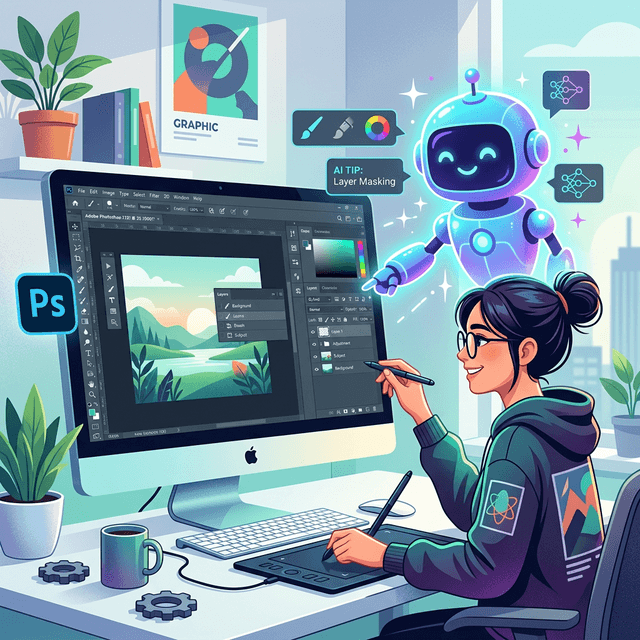
Adobe Photoshop remains the gold standard for photo editing, digital art, and graphic design. It is also one of the most notoriously difficult applications to learn on your own. With hundreds of tools, panels, blend modes, and keyboard shortcuts, newcomers often spend more time searching for the right button than actually editing images. Screen Copilot changes that equation entirely by watching your Photoshop workspace and giving you step-by-step guidance in real time.
Why Photoshop Is Hard to Learn Alone
Photoshop has been in development for over three decades, and every major release adds new capabilities on top of an already dense interface. Beginners face several common obstacles:
- Tool overload --- the toolbar alone contains more than 60 tools, many hidden behind fly-out menus.
- Non-obvious workflows --- tasks like removing a background require chaining multiple features (Select Subject, Refine Edge, Layer Mask) in the correct order.
- Destructive vs. non-destructive editing --- without guidance, new users frequently flatten layers or paint directly on originals, making mistakes permanent.
- Jargon-heavy documentation --- official tutorials assume familiarity with concepts like blend modes, curves, and channels.
Video tutorials help, but they force you to pause, rewind, and context-switch between the tutorial and your own canvas. By the time you find the right moment in a 20-minute video, your creative momentum is gone.
How Screen Copilot Helps You Learn Photoshop
Screen Copilot uses AI vision to observe your actual Photoshop window --- your toolbar, layers panel, canvas, and dialog boxes --- and responds to your questions based on what it sees right now.
- Context-aware answers: Ask "How do I remove this background?" and Screen Copilot will see your current selection, layer structure, and image content before recommending the best approach.
- Live panel reading: It can identify which tool you have selected, which layer is active, and whether you are working in RGB or CMYK, so its advice always matches your current state.
- Step-by-step walkthroughs: Instead of generic instructions, you get directions that reference the exact menus and buttons visible on your screen.
- Mistake prevention: If you are about to rasterize a smart object or merge layers unnecessarily, Screen Copilot can warn you before the damage is done.
Real-World Scenarios
Removing Backgrounds Cleanly
Background removal is one of the most-requested Photoshop tasks. Screen Copilot walks you through selecting the subject, refining hair edges with Select and Mask, and outputting the result to a new layer with transparency --- all while watching your canvas to confirm each step looks right.
Color Correction and Grading
Adjusting white balance, fixing exposure, or creating a cinematic color grade involves Curves, Levels, and Hue/Saturation adjustment layers. Screen Copilot can look at your histogram and suggest precise adjustments rather than giving you generic slider values.
Working with Layer Masks
Layer masks are the backbone of non-destructive editing, but their black-and-white logic confuses many beginners. Share your screen and ask Screen Copilot to explain exactly what your current mask is doing and how to refine it with a soft brush.
Portrait Retouching
Skin smoothing, blemish removal, and dodge-and-burn techniques require a light touch. Screen Copilot can observe your zoom level, brush settings, and retouching progress to coach you toward natural-looking results without the plastic look that plagues over-edited photos.
Pro Tip
Keep your Layers panel visible while working with Screen Copilot. The more of your workspace the AI can see, the more precise and helpful its guidance becomes. Undocking the Layers and Properties panels so they are always on screen is a simple way to improve the quality of advice you receive.
Tips for Photoshop Beginners
- Always use adjustment layers instead of editing pixels directly. Screen Copilot will remind you, but building the habit early saves hours of rework.
- Learn keyboard shortcuts in context. Rather than memorizing a cheat sheet, ask Screen Copilot for the shortcut each time you perform an action. Repetition in context builds muscle memory faster than flash cards.
- Save as PSD frequently. Keeping your layered file intact means you can always go back and adjust. Screen Copilot can help you set up auto-save if you tend to forget.
- Start with real projects. Editing your own photos is more motivating than following along with stock images. Screen Copilot adapts to whatever image you have open.
- Ask "why," not just "how." Understanding why a Curves adjustment affects midtones differently than Brightness/Contrast helps you make creative decisions independently over time.
From Beginner to Confident Editor
Photoshop mastery is not about memorizing every feature. It is about understanding core concepts --- layers, masks, selections, and color --- and knowing which tool to reach for in a given situation. Screen Copilot accelerates that journey by meeting you exactly where you are, looking at exactly what you see, and giving you the next step without the noise of irrelevant information.
Whether you are editing your first portrait or building a complex composite, having an AI assistant that sees your screen transforms Photoshop from an intimidating behemoth into a creative partner you can learn alongside.
Ready to try it yourself?
Start a free Screen Copilot session and get AI guidance on your own screen.
Try Screen Copilot Free