Helping Seniors Get Comfortable with Technology — No Jargon, No Judgment
Patient, jargon-free AI guidance for older adults learning to use computers, tablets, video calling, online banking, and more. Like a helpful grandchild who is always available.
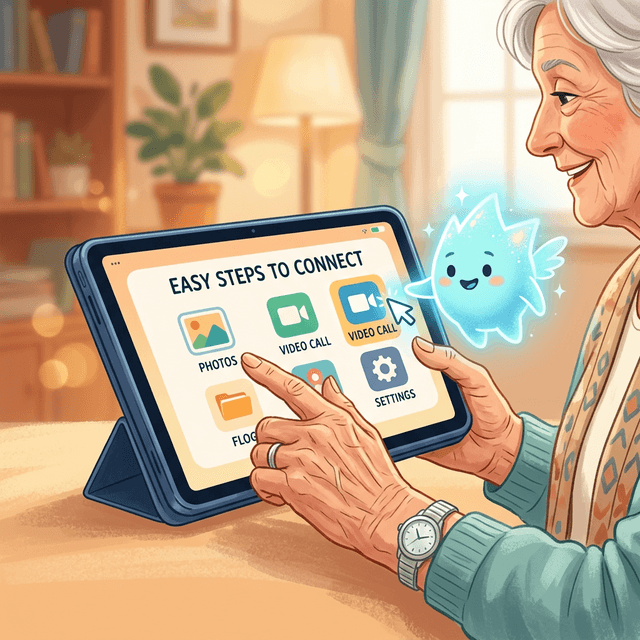
More than 40% of adults over 65 report feeling anxious when using new technology. Yet digital skills have become essential for daily life --- banking has moved online, doctors require patient portals, grandchildren communicate through video calls, and even grocery shopping increasingly happens through apps and websites.
The gap between "I need to do this online" and "I know how to do this online" is where millions of older adults get stuck. Traditional tech support is not designed for them: phone trees are confusing, help articles assume too much knowledge, and family members --- while well-meaning --- are not always available or patient.
Screen Copilot provides something different: a calm, patient AI assistant that can see exactly what is on your screen and guide you through any task, one step at a time, in plain English, without ever making you feel embarrassed for asking.
The Growing Digital Divide
The consequences of technology avoidance are real and growing:
- Social isolation --- when communication moves to Zoom, WhatsApp, and Facebook, those who cannot use these tools lose connection with family and friends
- Healthcare access --- patient portals are increasingly required for scheduling appointments, viewing test results, and messaging doctors
- Financial vulnerability --- inability to use online banking means reliance on branch visits, phone banking, or other people managing your money
- Information access --- news, community events, government services, and emergency information are increasingly digital-first
- Scam susceptibility --- without understanding how technology works, older adults are more vulnerable to phishing, tech support scams, and online fraud
This is not about ability or intelligence. It is about exposure, training, and having patient support when things go wrong.
Why Traditional Help Falls Short
Phone Support
Call your internet provider's support line. Navigate a phone tree. Wait on hold. Explain your problem to someone reading from a script who cannot see your screen. Get transferred. Explain again. The entire experience is designed around efficiency for the company, not clarity for the user.
Family Members
Your children and grandchildren mean well, but they often lack the patience to explain things at the right pace, use jargon without realizing it ("just clear your cache"), or solve the problem for you instead of teaching you how to do it yourself.
Online Help Articles
"Click Settings > Privacy > Cookies > Manage Data > Clear Browsing Data" reads a help article. Which "Settings"? Where is "Privacy"? What are "Cookies"? The article assumes you already know the answer to most of the question it is trying to answer.
Screen Copilot: A Patient AI Companion
Screen Copilot sees exactly what you see. When you share your screen, the AI observes your desktop, your browser, your applications --- whatever is visible. When you ask for help, it does not give generic instructions. It gives specific guidance based on your actual screen.
The experience is designed to be:
- Patient --- ask the same question five times and get a helpful answer every time
- Jargon-free --- no "cache," "bandwidth," or "authentication" without explanation
- Step-by-step --- one clear instruction at a time, not a list of 10 steps
- Non-judgmental --- there are no stupid questions, and Screen Copilot never implies there are
- Available --- morning, evening, weekends, holidays --- whenever you need help
Like a Helpful Grandchild
Screen Copilot is always available, always patient, and never rushes you. It sees your screen and explains what to do next in plain, simple language. Think of it as having a tech-savvy family member sitting right beside you.
Real-World Scenarios
Video Calling Grandchildren
Your daughter set up Zoom on your computer, but the icon disappeared and now you cannot find it. Share your screen with Screen Copilot and it will help you locate the application, open it, sign in, and join or start a call. If your camera or microphone is not working, it can see the settings panel and walk you through fixing it.
Online Banking
Your bank closed the local branch, and now everything happens through their website. Screen Copilot walks you through logging in securely, checking your balance, paying a bill, and understanding your statement. It can also help you recognize suspicious emails or websites that are trying to steal your information.
Email Basics
Reading, writing, replying, and forwarding email. Attaching photos. Managing your inbox. Spotting spam. Screen Copilot guides you through each action as it appears on your screen, whether you use Gmail, Yahoo Mail, Outlook, or any other email service.
Streaming Services
You got a Netflix subscription but cannot figure out how to find shows, create profiles, or adjust the volume. Screen Copilot can see the Netflix interface on your screen and guide you through browsing, searching, and managing your account.
Ordering Groceries Online
Your local grocery store offers delivery, but the website is confusing. Screen Copilot helps you create an account, browse products, add items to your cart, select a delivery window, and complete checkout --- all while explaining each step as it appears on screen.
Avoiding Scams
A pop-up says your computer is infected and you should call a number immediately. A text message claims your bank account is locked. An email asks you to verify your password. Screen Copilot can see these messages on your screen and help you identify which are legitimate and which are scams. It teaches you the warning signs so you can spot them yourself over time.
Tips for Family Members
If you are setting up Screen Copilot for a parent or grandparent:
- Bookmark Screen Copilot in their browser and show them how to open it
- Do a practice session together --- share the screen and ask Screen Copilot a simple question so they see how it works
- Reassure them that the AI is patient and they can ask anything without judgment
- Set up their browser with large text (Ctrl/Cmd + Plus) if they have trouble reading smaller fonts
- Check in periodically --- ask what they have been using Screen Copilot for and celebrate their progress
Start Simple
Do not try to learn everything at once. Pick one task --- like sending an email or joining a Zoom call --- and practice it with Screen Copilot until you feel confident. Then move to the next thing. Small wins build big confidence.
Digital Confidence Is Independence
Being comfortable with technology is not just about convenience. For older adults, it means maintaining independence, staying connected with loved ones, managing health and finances, and participating fully in a world that increasingly assumes digital fluency.
Screen Copilot removes the barrier between wanting to use technology and actually using it. No jargon, no judgment, no rushing. Just patient, screen-aware guidance that meets you exactly where you are.
Give the gift of digital confidence
Screen Copilot helps older adults use technology independently with patient, step-by-step AI guidance.
Try Screen Copilot Free